Why Premium Themes Often Fail When Installed
Installing premium WordPress themes may look simple on the surface, but the process often fails because premium themes come with more advanced structures, dependencies, and server requirements. Unlike free themes, premium packages usually contain multiple ZIP files, bundled plugins, demo data, and various configuration components. When users upload the wrong file, overlook server limitations, or ignore compatibility requirements, WordPress responds with errors such as “missing style.css,” “are you sure you want to do this?”, or even a blank white screen. Understanding these root causes is crucial, because most installation failures come from avoidable mistakes rather than from a defective theme. This introduction helps readers recognize the common pitfalls before diving into the technical steps of a proper installation.
Common reasons premium themes fail during installation:
-
Uploading the wrong ZIP file
Premium themes often include a “full package” containing documentation, demo assets, PSD files, and licensing information. Users mistakenly upload this instead of the actual installable theme ZIP. -
Theme requires a specific WordPress or PHP version
Many modern themes rely on updated PHP versions (7.4, 8.0, or newer) or recent WordPress releases. If the hosting environment runs outdated software, the installation may fail or cause a white screen upon activation. -
Server limitations and resource restrictions
Upload limits such asupload_max_filesize,post_max_size, andmax_execution_timefrequently cause large premium themes (10–50MB) to fail during upload. -
Missing required plugins or builders
Some themes depend on page builders (Elementor, WPBakery), custom post-type plugins, or bundled add-ons. Without these installed, the theme may break or fail to initialize properly. -
Conflicts with existing plugins
Active caching, optimization, or outdated security plugins can interfere with theme installation, resulting in broken layouts or error messages. -
Corrupted or incomplete uploads
Interrupted or unstable connections can corrupt the theme ZIP file during upload, causing WordPress to reject it. -
Using nulled or unofficial theme sources
Themes downloaded from illegal or unreliable sources often contain missing components, broken files, or injected malware , all of which trigger installation failures.
Understanding Premium Theme File Structures
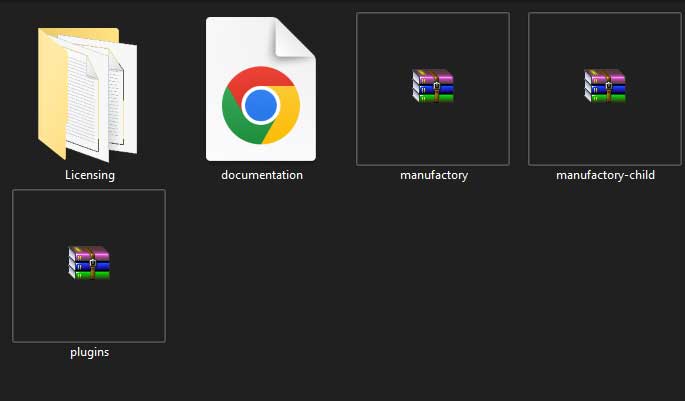
Premium WordPress themes typically come with a more complex file structure than standard or free themes. This is because premium themes are built to provide flexibility, advanced customization options, and professional-grade features. As a result, their downloadable packages often contain multiple folders, ZIP files, documentation, demo import tools, and required plugins. Many installation failures happen simply because users do not understand which file should actually be uploaded to WordPress. By recognizing how premium theme packages are organized, users can avoid common errors and perform a clean, error-free installation.
Parent Theme vs. Child Theme
Premium themes often include both a parent theme and a child theme, and understanding the difference is essential.
Key points:
-
Parent theme contains the full design and functionality
This is the main theme that must always be installed and activated for the child theme to work. -
Child theme is optional but recommended for customization
It inherits the parent theme’s features and allows you to modify styles or functions without altering the core files. -
Updating the parent theme won’t erase custom edits
Because custom code stays inside the child theme, updates become safer and more maintainable. -
Some premium providers require installing both themes
Failing to upload both may cause missing features or broken layouts.
Main Theme Package vs. Installable Files
Premium theme downloads often include a full package with multiple extras, which leads users to upload the wrong ZIP file.
Key points:
-
Full package contains documentation, PSDs, licensing files, and demo data
This package is not installable and is meant for offline use. -
Installable theme ZIP is usually located inside a subfolder named “Theme,” “Installable,” or “Theme Files Only”
This is the file WordPress expects when uploading through the dashboard. -
Uploading the full package triggers the “missing style.css file” error
This is the most common mistake made by beginners. -
Some themes split files into multiple ZIPs
Example: core theme ZIP, child theme ZIP, bundled plugin ZIPs, and demo import ZIPs.
Required Plugins and Add-ons
Premium themes frequently rely on external plugins to enable their advanced features.
Key points:
-
Page builders like Elementor or WPBakery may be mandatory
The theme layout may break without the required builder. -
Themes often include proprietary plugins
Such as portfolio modules, slider tools, or custom block libraries. -
Demo content may not import unless required plugins are activated
Missing plugins commonly cause incomplete or broken demo imports. -
Some providers bundle premium plugins within the package
These add-ons must be installed manually to unlock full theme functionality.
Methods to Install Premium WordPress Themes
Premium WordPress themes can be installed using several different methods, each suited to different situations and technical conditions. While most users rely on the built-in WordPress dashboard uploader, premium themes often come with larger file sizes and additional dependencies that may cause the standard upload process to fail. For this reason, alternative methods such as cPanel/File Manager and FTP become essential options when handling complex or heavy theme packages. Understanding all three installation methods helps users prevent common upload errors and ensures that the theme is installed cleanly and functions correctly from the very beginning.
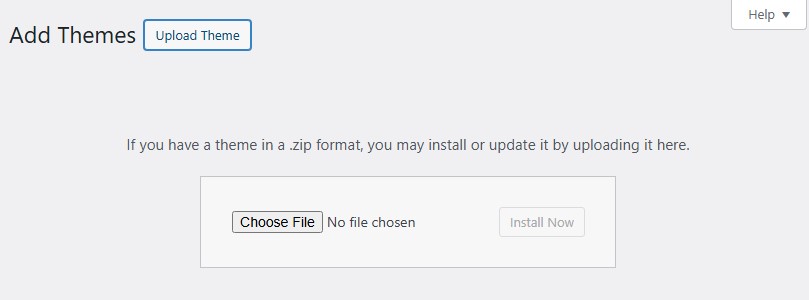
Method 1 , Installing via WordPress Dashboard (Most Common)
Installing through the WordPress dashboard is the simplest and the preferred method for most users who have a stable hosting environment.
Key points:
-
Accessible through the Appearance → Themes → Add New → Upload Theme menu
This built-in uploader allows you to upload the installable ZIP file directly. -
Quick and beginner-friendly
No need for file managers or external tools; everything is done inside WordPress. -
Works best for smaller theme files
Some premium themes exceed the hosting upload limit and may require server adjustments. -
Potential limitations
Errors such as “Are you sure you want to do this?” or failed uploads usually indicate server restrictions like lowupload_max_filesize.
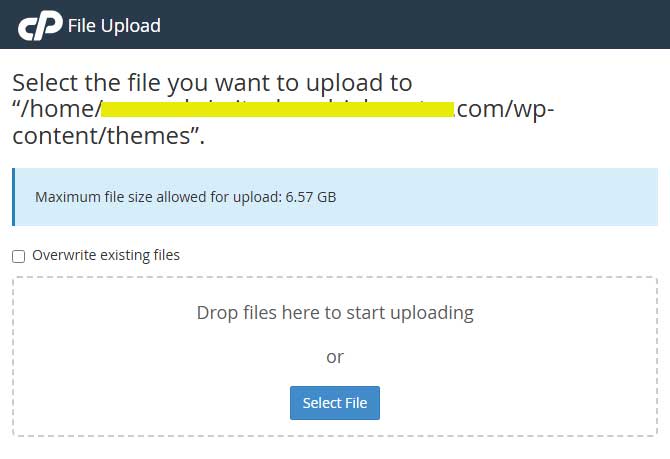
Method 2 , Installing via cPanel / File Manager
This method is ideal when the dashboard upload fails due to size limits or timeouts. cPanel’s File Manager bypasses upload restrictions because the extraction process happens directly on the server.
Key points:
-
Upload the ZIP into
/wp-content/themes/directly on the server
This avoids PHP upload limitations imposed by shared hosting. -
Extract the ZIP inside File Manager instead of uploading uncompressed folders
Extraction on the server is faster and reduces the chance of corrupted files. -
Useful for large themes (20–50MB)
Premium themes with bundled assets often exceed dashboard upload limits. -
Fewer interruptions
The installation process is more stable because it does not rely on browser upload connections.
Method 3 , Installing via FTP (Failsafe Method)
FTP installation is the most reliable method when dealing with stubborn themes, hosting restrictions, or partially corrupted uploads. This method is recommended for developers and advanced users.
Key points:
-
Connect via FTP software (FileZilla, WinSCP, Cyberduck)
This gives full control over WordPress directories. -
Manually upload the extracted theme folder into
/wp-content/themes/
This ensures the theme is transferred file-by-file, reducing the chance of upload errors. -
Bypasses server limits entirely
FTP does not depend on PHP upload settings, making it ideal for very large themes. -
Useful for troubleshooting
When the theme fails to install or activate, FTP access allows users to rename or remove problematic theme folders safely.
Most Frequent Errors and How to Fix Them
Over the years of installing countless premium WordPress themes for clients across different industries, I’ve run into the same installation errors repeatedly. Most of these issues are not caused by the theme itself but by misunderstandings about ZIP files, server limitations, plugin conflicts, or outdated hosting environments. By knowing the most frequent errors and understanding exactly why they happen, I’ve learned how to fix them quickly and prevent them from happening again. Below are the errors I encounter the most and the practical solutions that consistently work for me.
“The package could not be installed. The theme is missing the style.css file.”
This is the most common error I see when people try to install a premium theme. It happens almost every time the user uploads the wrong ZIP file.
Key points:
-
The user uploads the full theme package instead of the installable theme ZIP
Premium downloads often contain documentation, demo data, and licensing folders. WordPress can’t install these. -
The correct ZIP is usually inside a folder named “Theme,” “Installable,” or “Theme Files Only”
I always check the inner ZIPs before uploading. -
The fix is simple: extract the main package and upload only the installable ZIP
Once I use the right ZIP, the installation goes through without issues.
“Are you sure you want to do this?” Error
I usually encounter this when the theme ZIP file is too large for the hosting environment.
Key points:
-
The server upload limit is too small (e.g., 2–8MB)
Many premium themes are 20MB or more. -
The PHP settings need increasing (
upload_max_filesize,post_max_size,max_execution_time)
I typically raise these values inphp.inior via the hosting control panel. -
Alternatively, installing via cPanel or FTP bypasses the limitation entirely
When I’m in a hurry, I upload the theme directly through File Manager.
White Screen After Activating the Theme
This is a frustrating one because there’s no visible error. I’ve seen it many times, especially with older hosts.
Key points:
-
Usually caused by PHP version incompatibility
Some themes require PHP 7.4 or 8.0+, and activating them on older versions causes a blank page. -
Outdated or conflicting plugins can also trigger it
I’ve fixed many cases simply by disabling all plugins and reactivating them one by one. -
Checking the error log always reveals the cause
The log typically points to missing functions or memory errors.
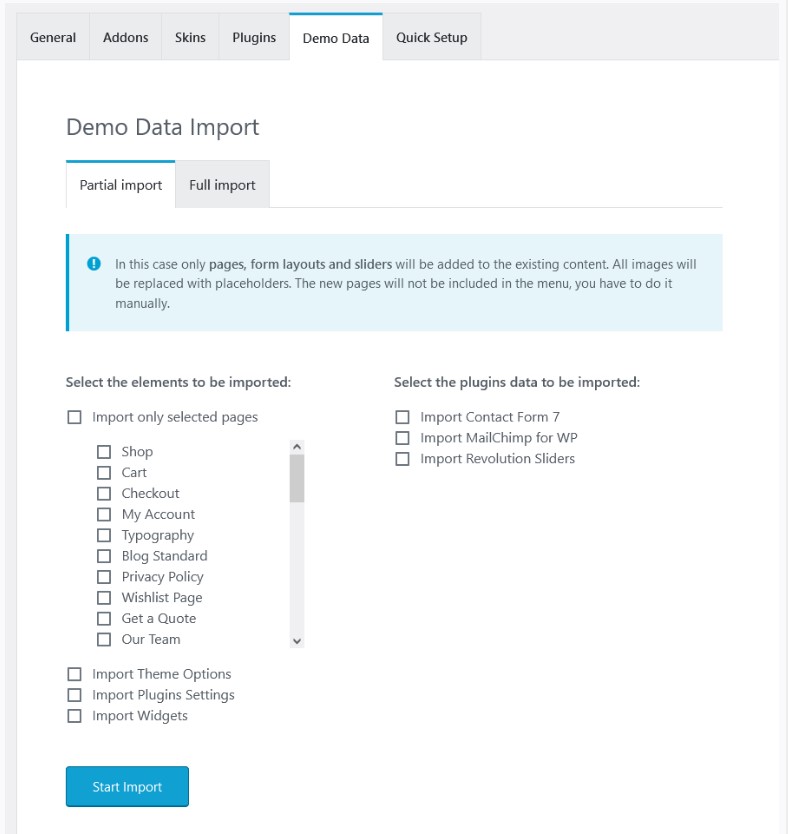
Demo Import Fails or Gets Stuck at 0%
I face this issue mostly with large demo packages or when required plugins are not installed.
Key points:
-
Missing required plugins such as Elementor, WPBakery, or custom modules
Demo content fails when key dependencies are not activated. -
PHP execution time or memory is too low
Increasingmemory_limitandmax_execution_timeusually solves the problem. -
Network timeout or hosting limitations
On slow servers, I prefer to use the alternative manual import method provided by the theme developer. -
Some demos require external API connections
If the host blocks these connections, the import stalls indefinitely.
Essential Preparations Before Installing Any Premium Theme
Before I install any premium WordPress theme, I always make sure the environment is fully prepared. Over time, I’ve learned that most installation problems can be avoided simply by doing a few checks in advance. These steps save me from dealing with broken layouts, incomplete demo imports, or activation failures. Preparing the site properly doesn’t just make installation smoother, it also prevents headaches later when the theme starts loading advanced modules, page builders, and large demo files. Below are the essential preparations I consistently perform, based on real experience handling premium themes for clients around the world.
Check PHP and WordPress Version Compatibility
One of the first things I do is confirm whether the hosting environment supports the theme’s minimum requirements.
Key points:
-
Premium themes often require newer PHP versions like 7.4, 8.0, or higher
Running an outdated PHP version is a quick way to trigger blank screens or fatal errors after activation. -
Some themes no longer support older WordPress versions
If the WordPress core is outdated, certain functions simply won’t work. -
I routinely verify this by reading the theme’s documentation or checking the
readme.txtfile
This small step helps avoid loads of unnecessary troubleshooting.
Deactivate Conflicting Plugins
Before activating a premium theme, I always disable plugins that have a history of causing conflicts.
Key points:
-
Caching and optimization plugins often interfere with layout loading
Plugins like WP Super Cache or LiteSpeed Cache can break the appearance of newly installed themes. -
Old page builder plugins can conflict with the theme’s required builder
I’ve seen Elementor-based themes break because WPBakery was still active. -
Security plugins sometimes block important installation scripts
Disabling them temporarily keeps the theme installation clean. -
After the theme is installed correctly, I reactivate plugins one by one
This helps me identify any plugin that causes issues.
Ensure SSL & Security Settings Are Ready
In my experience, themes behave more consistently when the site is already configured with SSL and basic security.
Key points:
-
Themes that load fonts, scripts, or APIs over HTTPS can break if the site still uses HTTP
This mismatch creates mixed-content warnings that ruin the layout. -
I always activate SSL first using a valid certificate
It prevents broken icons, missing images, and warning messages. -
Some themes include API-based modules (maps, social feeds, analytics)
These often refuse to load properly without HTTPS. -
Enabling basic security settings protects the site once the theme is live
Especially important when clients enter the site while I’m still configuring it.
Backup Your Website Before Installation
Backing up the site is one of the most important habits I’ve developed when dealing with premium themes.
Key points:
-
A backup lets me restore the site instantly if something goes wrong
Failed demo imports or plugin conflicts can sometimes break the entire layout. -
I usually back up the database and the
/wp-content/folder
This ensures that posts, images, and plugin settings are safe. -
A backup is especially important when replacing an old theme
Switching themes can reset widgets, menus, and layout elements. -
Even on a new site, a backup protects the initial configuration
It takes only a few minutes and saves hours of repair work later.
Setting Up the Theme After Installation
Once I successfully install a premium WordPress theme, I immediately move into the setup phase, which is just as important as the installation itself. Over time, I’ve learned that a theme is never ready straight out of the box, there are essential steps that determine whether the site will look polished, load quickly, and function correctly. From installing required plugins to importing demo content and optimizing performance, these steps help me ensure the final website reflects the quality expected from a premium theme. Below is the setup process I consistently follow based on real-world experience.
Installing Required Plugins
Premium themes almost always depend on specific plugins to unlock their full functionality, so I begin by installing every required plugin before doing anything else.
Key points:
-
Page builders like Elementor, WPBakery, or Gutenberg add-on packs are often mandatory
Without them, sections, layouts, or page templates won’t load properly. -
Some themes come with custom-built plugins
I’ve worked with themes that include portfolio modules, sliders, galleries, or shortcode packs that must be activated to prevent layout errors. -
Missing plugins often lead to broken pages or incomplete demos
I’ve seen many clients panic because half the homepage elements disappear, usually because a required plugin wasn’t installed. -
I always check for plugin updates before activating them
Outdated bundled plugins can cause compatibility issues after activation.
Importing Demo Content (Full, Partial, or Manual)
Once the plugins are ready, I move on to importing the demo content. This step helps me build a quick visual structure before customizing the site.
Key points:
-
Demo import gives a complete layout similar to the theme preview
It saves hours of work because I don’t need to manually create pages from scratch. -
Some themes offer multiple demo options: full import, partial import, or selective import
I usually choose the option that best fits the type of website I’m building. -
If the demo import fails, I check server limits and plugin dependencies
Increasing the memory limit or execution time usually fixes the issue. -
For larger themes, I sometimes prefer manual import
Importing pages, sections, or templates individually gives me better control over the final structure.
Optimizing the Theme for Speed
After the layout is in place, I focus on performance. Premium themes often load multiple scripts, animations, and design features, so I always optimize speed early in the setup phase.
Key points:
-
I remove unnecessary demo pages, sliders, or widgets
Keeping only what I need helps reduce load time. -
Image optimization is a priority
Large demo images slow down the site, so I replace or compress them before going live. -
I enable browser caching and lazy loading
These small adjustments make a noticeable difference in performance. -
Minifying CSS and JS helps reduce total page size
Especially for themes that rely heavily on page builders or animation scripts.
A Clean Premium Theme Install Sets the Foundation for a Stable Website
From my own experience managing and building WordPress sites, I’ve learned that a clean premium theme installation isn’t just a “nice-to-have”, it’s the backbone of long-term website stability. When the theme is installed properly, without leftover demo clutter or conflicting settings, everything else becomes easier: optimization, design adjustments, plugin integration, and even long-term maintenance.
A clean install allows me to avoid the kind of messy configurations that usually cause slow loading times, layout errors, or plugin conflicts. Over the years, I’ve realized that the smoothness of a website almost always depends on how well the foundation is laid during the very first setup.
Key Advantages I Noticed:
1. Faster and Smoother Performance
A properly installed premium theme eliminates unnecessary demo components that often slow down the site.
-
No leftover widgets or bloated sample pages
-
Cleaner database with fewer unused entries
-
Faster loading speeds from day one
2. Easier Customization and Scaling
When the theme is clean, modifying it becomes effortless because everything loads exactly as designed.
-
Layouts respond predictably
-
New plugins integrate without conflict
-
Future redesigns are less time-consuming
3. Stronger Website Security
I’ve seen many sites get bloated with unused scripts and outdated demo files, which can become security vulnerabilities.
-
Clean installs reduce exposure
-
Only essential files remain
-
Updates run smoothly without errors
4. Professional Branding Without Technical Headaches
A good premium theme gives your site a polished look immediately, and a clean setup ensures the design performs as intended.
-
No broken elements
-
No mismatched styles
-
A professional appearance from day one
If you want your WordPress setup handled smoothly and professionally, feel free to explore my full service here: WordPress Theme Installation Service. And if you prefer quick, direct guidance, just reach out to me via WhatsApp through my profile, I’ll be glad to help you personally.
Don’t wait until small issues turn into big problems. Reach out to me on WhatsApp today and let’s build your website the right way from the very beginning.

🌐 Your Expert WordPress Setup & Performance Optimizer
Hello! I’m Arifin, a seasoned WordPress Specialist based in Sidoarjo, East Java, Indonesia, dedicated to delivering fast, secure, and professionally installed websites.
Are you looking for a hassle-free launch or a significant performance boost for your WordPress site? With deep experience in both frontend theme implementation and critical backend server tuning, I ensure your project is built on a solid foundation, ready for success.
My Core Expertise & Services:
| Service Category | What I Deliver | Key Benefits |
| Premium Theme Installation & Licensing | Expert installation and configuration of premium themes (e.g., ThemeForest). I handle license activation, ensuring compliance and smooth functionality from day one. | Professional look, full feature access, and proper licensing setup. |
| Seamless Website Migration | Stress-free transfer of your complete website from one hosting provider to another, guaranteeing zero data loss (except emailing list) and minimal downtime. | Reliable move, ready for a new hosting environment. |
| Advanced Plugin Conflict Resolution | Troubleshooting and fixing complex plugin conflicts (like LSCache vs. WP-Optimize), ensuring all performance and utility plugins work harmoniously without breaking your site. | Optimized performance and site stability without costly errors. |
| Critical Security Implementation (SSL/TLS) | Setting up and enforcing SSL/TLS certificates to secure your connection, protect against hacking threats, and build user trust. | Enhanced security, improved SEO, and “secure” browser status. |
| Backend & Server Performance Tuning | Expert configuration of PHP settings (increasing upload size, enabling GZIP compression, adjusting PHP version) to ensure optimal server resource allocation and lightweight WordPress loading. | Dramatically improved website loading speed and reliability. |
| Hosting & Domain Management | Custom Email Setup: Creating professional domain-specific email addresses and setting up reliable email forwarders. Infrastructure: Managing custom data uploads via File Manager and creating subdomains. | Full control over your digital identity and development environment. |
Why Choose Me?
I go beyond simple installation. I deliver a fully optimized, secure, and ready-to-launch website. My commitment is to resolve the technical headaches, especially plugin conflicts and server-side performance issues, so you can focus purely on your content and business.
🌍 Global Reach & Support
I proudly serve your websites worldwide, supporting clients and projects from the US, Canada, Australia, Norway, Luxembourg, Netherlands, Croatia, Scotland, Dubai, Qatar, and many more international locations. Distance is not a barrier to achieving peak website performance!
📞 Ready to Boost Your Website’s Performance?
For immediate consultation and quick support, feel free to reach out directly via WhatsApp.
WhatsApp (Arifin): +62 838-3441-8700
⬇️ Click to Chat Now! ⬇️
Start Your Free Website Consultation
I’ve helped entrepreneurs, bloggers, agencies, and corporate teams transform basic WordPress installs into fully optimized, high-performing websites — without unnecessary complications or upsells. SEO isn’t guesswork for me… it’s architecture. Every setting has a purpose, every article is built to rank, and every site gets the foundation it deserves.
Outside of the keyboard, I share insights and professional journey through my LinkedIn profile:
(linkedin.com/in/shoumal-arifin-b432a3286) — feel free to connect if you like straightforward WordPress talk with a side of dry humor.
If you want a website that’s not just “installed” but intelligently engineered and future-proofed for search engines, I’m your guy. My philosophy is simple:
Good design makes a site look nice. Good SEO makes a site unforgettable.
Let me handle the complicated stuff so you can focus on what you do best, running your business.
Your website deserves more than a theme. It deserves an expert.
=============================================================